> For the complete documentation index, see [llms.txt](https://appfront.gitbook.io/portal/llms.txt). Markdown versions of documentation pages are available by appending `.md` to page URLs; this page is available as [Markdown](https://appfront.gitbook.io/portal/campaigns/embed-kit.md).
# Embed Kit
The **Embed Kit** allows you to add a customer sign-up form to any external website by embedding a small code snippet.
Customers can register directly from your website and automatically join your loyalty or marketing program.
The Embed Kit supports two formats:
**Modal Pop-Up**\
Displays the sign-up form in a pop-up window.
**Embedded iFrame**\
Displays the sign-up form directly inside a section of the page.
***
## Where to Find It
Go to:
**Design → Ordering → Scroll right → Embed Kit**
***
## What You Can Do With the Embed
The embed can be used to:
• Add a **customer sign-up form** to your website\
• Automatically add users to a **specific customer group**\
• Trigger a **Deep Link campaign**\
• Grant a **promotion or coupon** after signup
You can also:
• Preview the embed\
• Save configurations as presets\
• Load previously saved configurations
***
## Step 1 — Create a Deep Link Campaign (Optional)
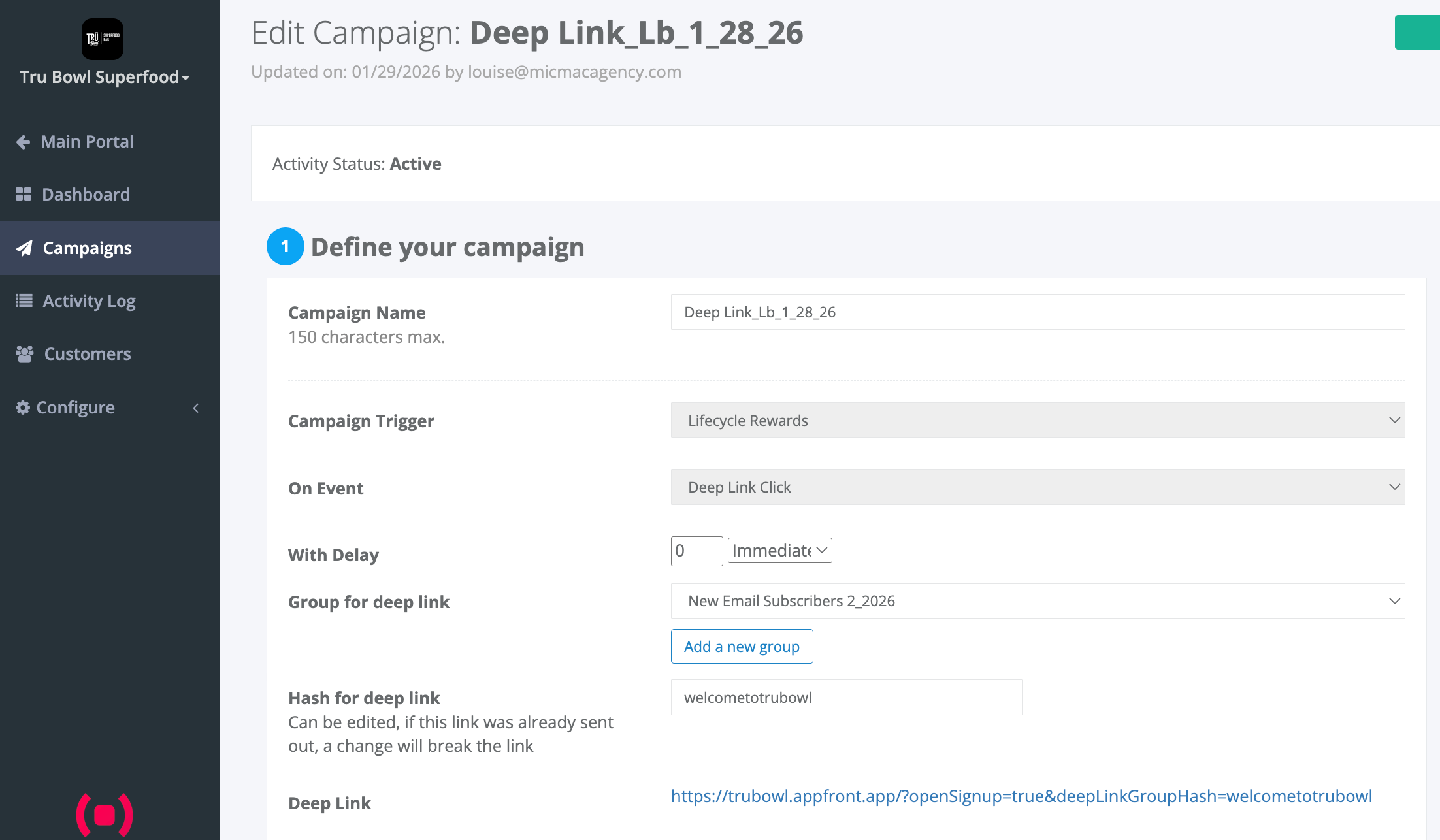
Both **Modal** and **iFrame** embeds can connect to a **Deep Link Campaign**.
This allows you to automatically group customers who sign up through the embed.
To create one:
1. Choose a **Group Name**\
All customers who submit the form (new or existing) will automatically be added to this group.
2. (Optional) Customize the **Group Hash**\
This can be edited if you want a more personalized link.
3. (Optional) Attach a **Coupon or Promotion**\
Customers can automatically receive a reward after signing up.
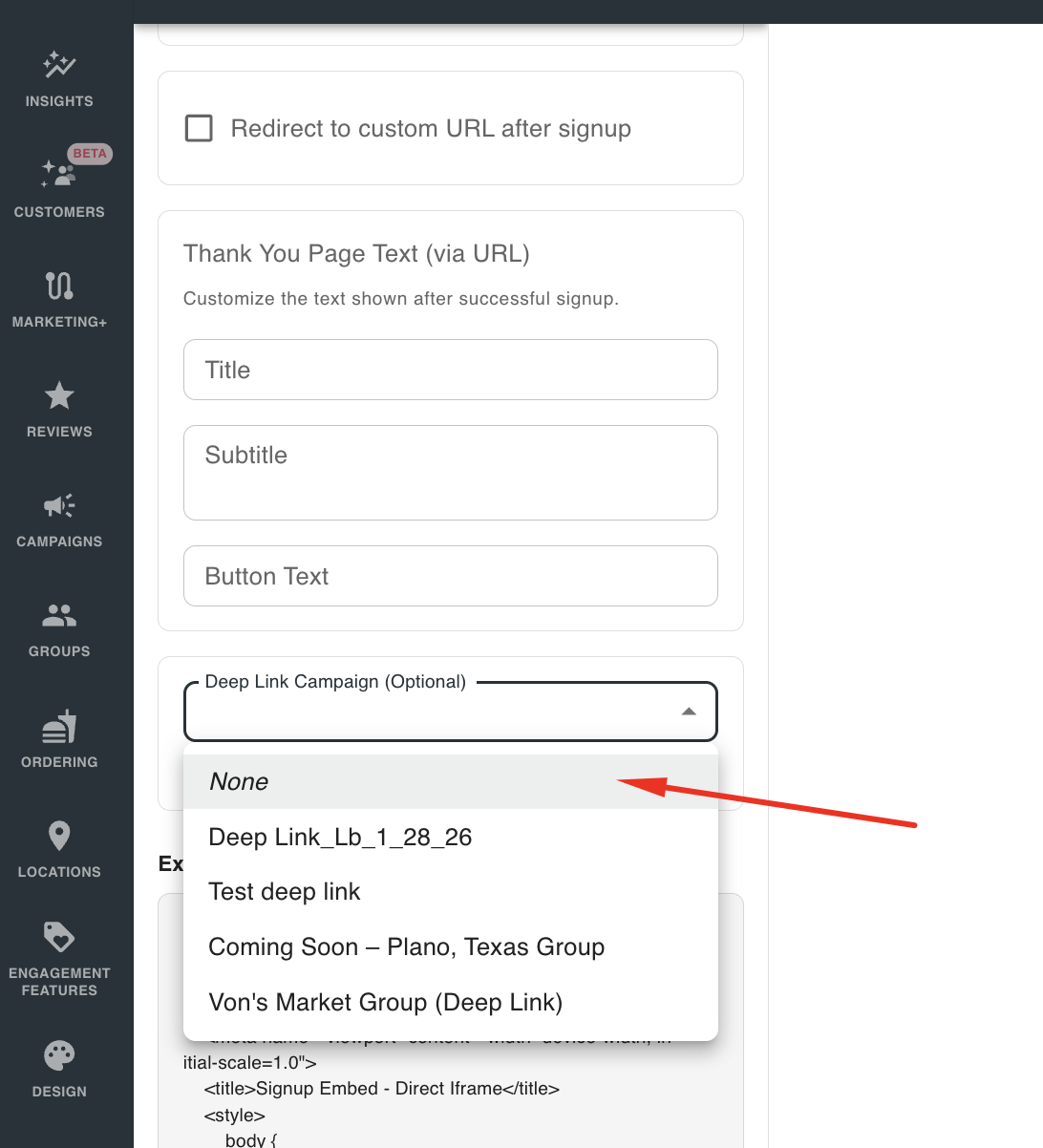
Once created, select the campaign under **Deep Link Campaign** in the Embed configuration.
***
## Modal Pop-Up Embed
This option opens the sign-up form inside a **pop-up window** on your website.
### Configure When the Pop-Up Appears
You can choose how the pop-up is triggered:
**Show on page load**\
The pop-up appears immediately when the page loads.
**Delay after page load**\
Display the pop-up after a set number of seconds.
**Wait days before showing again**\
Prevent the pop-up from appearing again for returning visitors for a specified number of days.
***
### Add the Embed Script
Add your script to your website’s HTML:
This loads the Embed Kit functionality on your website.
***
### Trigger the Pop-Up Manually (Optional)
You can also open the pop-up when users click a button or link.
Use the following function:
```
window.AppFront.openSignupPopup()
```
Example use cases:
• “Join our rewards program” button\
• Promotional banners\
• Checkout page signup offers
***
## iFrame Embed
The **iFrame embed** displays the sign-up form directly inside your webpage.
This option is useful for:
• Landing pages\
• Signup sections\
• Footer or sidebar forms
***
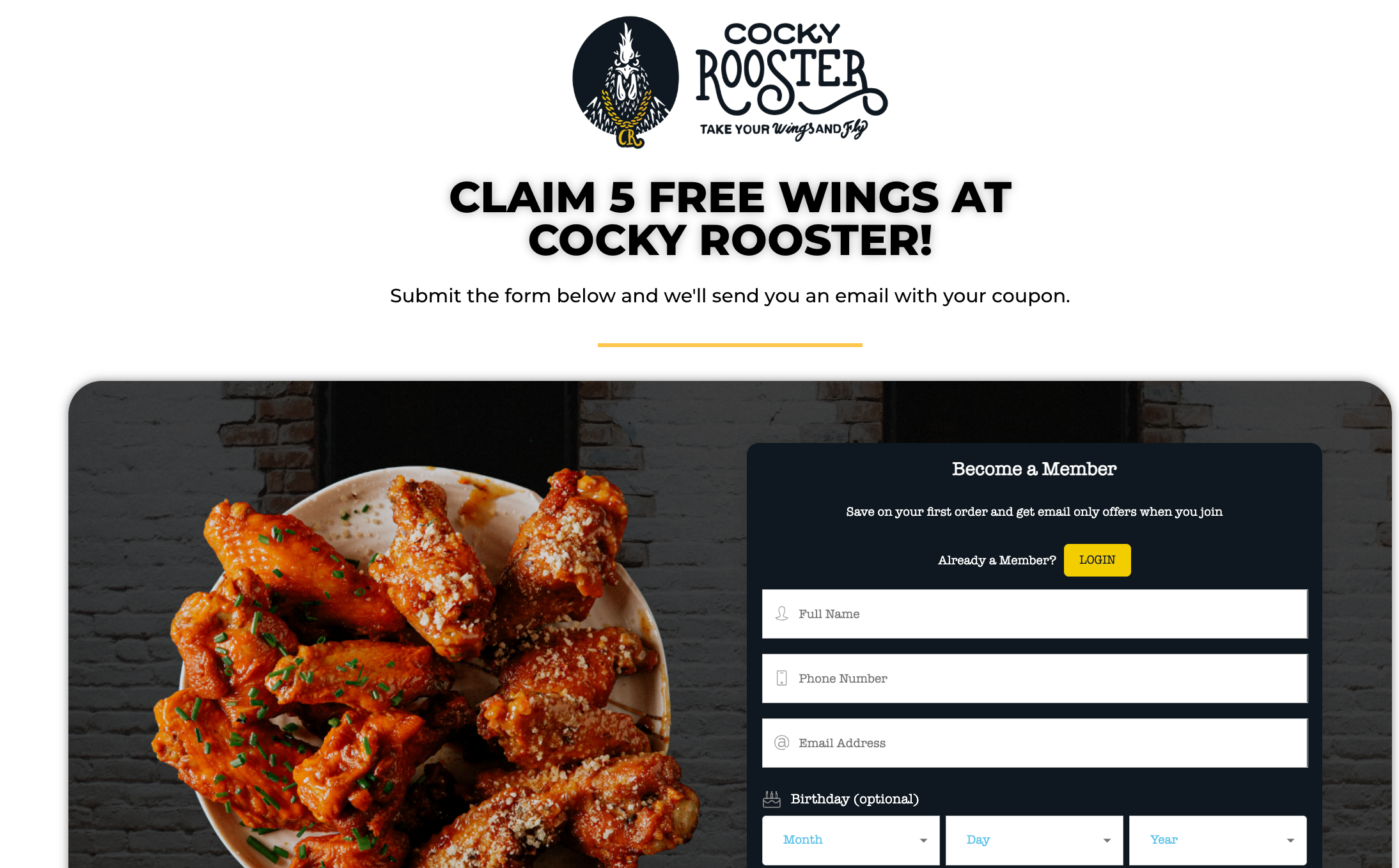
## Sign-Up Form Fields
By default, the form includes:
• **Full Name**\
• **Phone Number**\
• **Email Address**\
• **Birthday (optional)** — Month / Day / Year
Users must also accept the **Terms of Service and Privacy Policy** before signing up.
***
## Customizing Form Fields
You can simplify the form by hiding specific fields.
Available options include:
• Minimal mode (hides name and birthday fields)\
• Hide name field\
• Hide birthday field\
• Hide email field\
• Hide the preferred locations field\
• Hide login option\
• Hide signup headers (title & subtitle)
This allows you to create a **shorter signup experience**.
***
## Customizing Form Text
You can customize the text shown in the embed:
**Title**\
Main heading displayed above the form.
**Subtitle**\
Additional description or instructions.
***
## Redirect or Thank-You Page
After a successful signup, you can configure additional actions.
**Redirect to Custom URL**
Automatically send users to another page after signing up.
Example uses:
• Confirmation page\
• Promotion page\
• Download page
***
You can also customize the **Thank-You message**, including:
• Title\
• Subtitle\
• Button text
***
## Final Step — Add the Embed to Your Website
1. Save the version you created for future use.
2. Copy the **generated HTML embed code**
3. Paste it into your website where you want the form to appear
4. Publish the page
Your sign-up form will now appear on your website and connect directly to your **Appfront customer system**.
**Example:**
## Store Locator Embed
The **Store Locator Embed** allows you to display your business locations directly on your website so customers can easily find nearby stores.
This embed displays your **locations map and store list** directly inside your website.
The Store Locator can be added as an **iFrame**.
***
## Where to Find It
Navigate to:
**Design → Ordering → Embed Kit → Store Locator**
***
## How to Embed the Store Locator
To add the Store Locator to your website:
#### Step 1 — Copy the iFrame Code
Inside the **Store Locator Embed** section, copy the generated HTML code.
Example:
```
```
#### Step 2 — Add the Code to Your Website
Paste the code into the HTML of the page where you want the **Store Locator** to appear.
Common placements include:
• A **"Find a Store" page**\
• A **contact page**\
• A **store locator section** on the homepage